To set up Stream4K IPTV on a MAG box, connect your Linux-based MAG receiver to your TV and internet, give Stream4K the box’s MAC address, and enter the portal address supplied for your account under System settings → Servers → Portals → Portal 1 URL. Save the settings and select Restart portal. The portal will load only after your device is authorized for the service.
These instructions apply primarily to the MAG 254 and MAG 322 and their compatible firmware variants. They explain a built-in Stalker/Ministra portal connection, not a separate Android player or an Xtream Codes login. Infomir documents the menu path and portal restart procedure.
Check your MAG model before setting up
A MAG box is a separate set-top receiver that connects to your television by HDMI. On the Linux-based models covered here, the portal client is already part of the firmware. You do not install STBEmu or an APK to configure the Stream4K Stalker portal on these boxes.
| MAG model | What matters for Stream4K setup |
|---|---|
| MAG 254 | Linux-based receiver with an embedded portal. Check the MAC printed on the device and enter the Stream4K address in Portal 1. Video output supports up to 1080p. |
| MAG 322 / MAG 322w1 | Linux-based receiver using the same general portal-settings route. MAG 322 supports H.265/HEVC decoding and video output up to 1080p; the w1 variant includes built-in Wi-Fi. |
| Other Linux MAG models | Several MAG 250, 256, 324, 349, 420, 520 and 524 variants use Infomir’s embedded-portal system, but firmware and server compatibility must be checked for your specific model. |
| Android/Google TV MAG devices | Different operating system and setup route. The MAG 555, for example, runs Google TV; follow a compatible Android/Google TV player guide rather than assuming these portal menus exist. |
The Infomir MAG product documentation and Linux MAG model list explain these differences. A Stream4K plan offering 4K streams cannot make a MAG 254 or MAG 322 output 4K video. Also, an available portal menu does not by itself guarantee that a particular model is authorized or supported by the Stream4K server. Confirm the model before buying if you are unsure.
What you need for Stream4K MAG portal setup
- A compatible MAG receiver, its remote control and power supply.
- An HDMI-connected TV and a working internet connection. Ethernet is preferable on older boxes when available.
- The physical MAC address shown on the receiver, usually on a label underneath or in System settings → Device info. An Infomir device MAC commonly begins
00:1A:79, followed by six hexadecimal digits. Read and copy your actual address; never use an example value. - An approved Stream4K subscription or an eligible 48-hour free-trial request, plus the exact Stalker portal URL supplied for that activation.
The box manufacturer does not supply channels or a Stream4K account. Infomir explains that portal addresses come from the service operator. The portal address and the authorized MAC must belong to the same account.
Step 1: Connect the MAG box and check the network
- Connect the MAG receiver’s HDMI output to an HDMI input on your TV.
- Connect an Ethernet cable from your router to the MAG box. If you have a Wi-Fi-capable variation, wireless setup is possible, but standard MAG 254 and MAG 322 units should not be assumed to have integrated Wi-Fi.
- Connect the supplied power adapter. Select the correct HDMI input with your TV remote.
- Open the MAG Settings menu and check the network information. For wired connections, look for an active link and a valid IP address; if either is missing, check the Ethernet cable and router first.
If the TV shows No signal, that is an HDMI input, cable, power or output-mode problem—not evidence that the Stream4K portal is down. Infomir’s MAG 322 troubleshooting guidance separates these symptoms.
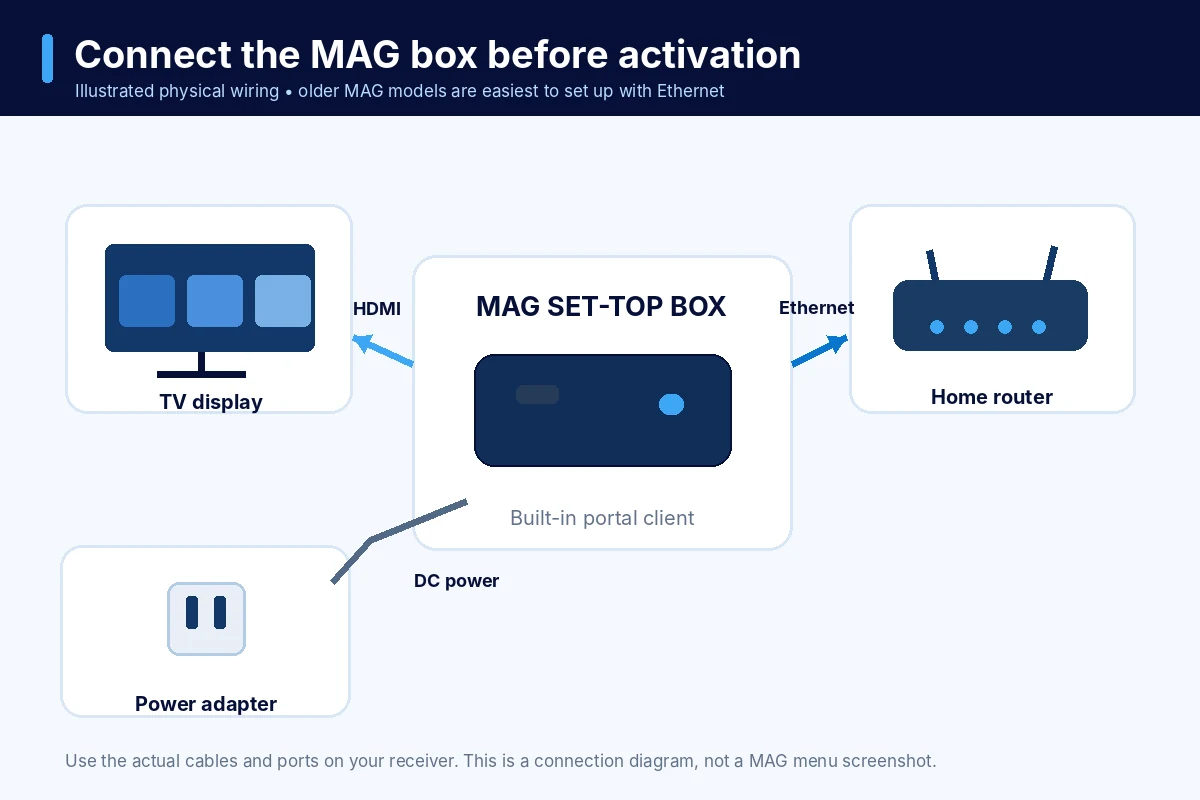
Connection diagram: check the actual port positions on your own receiver.
Step 2: Find and register your MAG box MAC address
For a physical MAG 254 IPTV setup or MAG 322 setup, register the MAC of the actual receiver—not a virtual MAC copied from an Android emulator.
- Look at the sticker on the underside or rear of the set-top box for MAC.
- If the sticker is unclear, open Settings → System settings → Device info and look for MAC address. The wording can vary by firmware.
- Copy all six pairs exactly, including the letters and colons, and keep a photo for reference.
- Send the address and your exact MAG model with your Stream4K order request. Wait for confirmation that the device is registered.
Infomir identifies the MAC in its System settings device information. Do not post your complete MAC or private portal URL publicly. A new or replacement MAG box has a different MAC and may require its registration to be changed before service will load.
Step 3: Enter the Stream4K Stalker portal URL
This is the main Stalker portal MAG box configuration step. It is the same general workflow whether you are entering a MAG 254 portal address or a MAG 322 portal URL.
- From the receiver’s embedded portal, press SET or SETUP on the MAG remote, or open Settings from the main menu, depending on the firmware.
- Choose System settings → Servers → Portals.
- Select Portal 1 name. Open the on-screen keyboard using the remote’s KB button if needed, and enter Stream4K as a recognizable label. The label does not activate the account.
- Move to Portal 1 URL. Enter the complete portal URL supplied by Stream4K, including its specified protocol, domain, port or path. Do not copy an example URL from another provider or guess a
/c/suffix. - Confirm the text with the on-screen keyboard’s Enter control, then exit the Portal settings. Save changes as prompted by your firmware.
- Open System settings → Restart portal. Let the receiver reload and connect.
These steps follow Infomir’s official external-portal configuration sequence, which specifies the keyboard, Portal 1 fields, Enter confirmation and Restart portal action. Some interfaces may restart the portal after rebooting the receiver instead.
Important: “Portal 1 name” is just a name. “Portal 1 URL” is the actual service connection address. A correct URL still won’t activate an unregistered MAC.
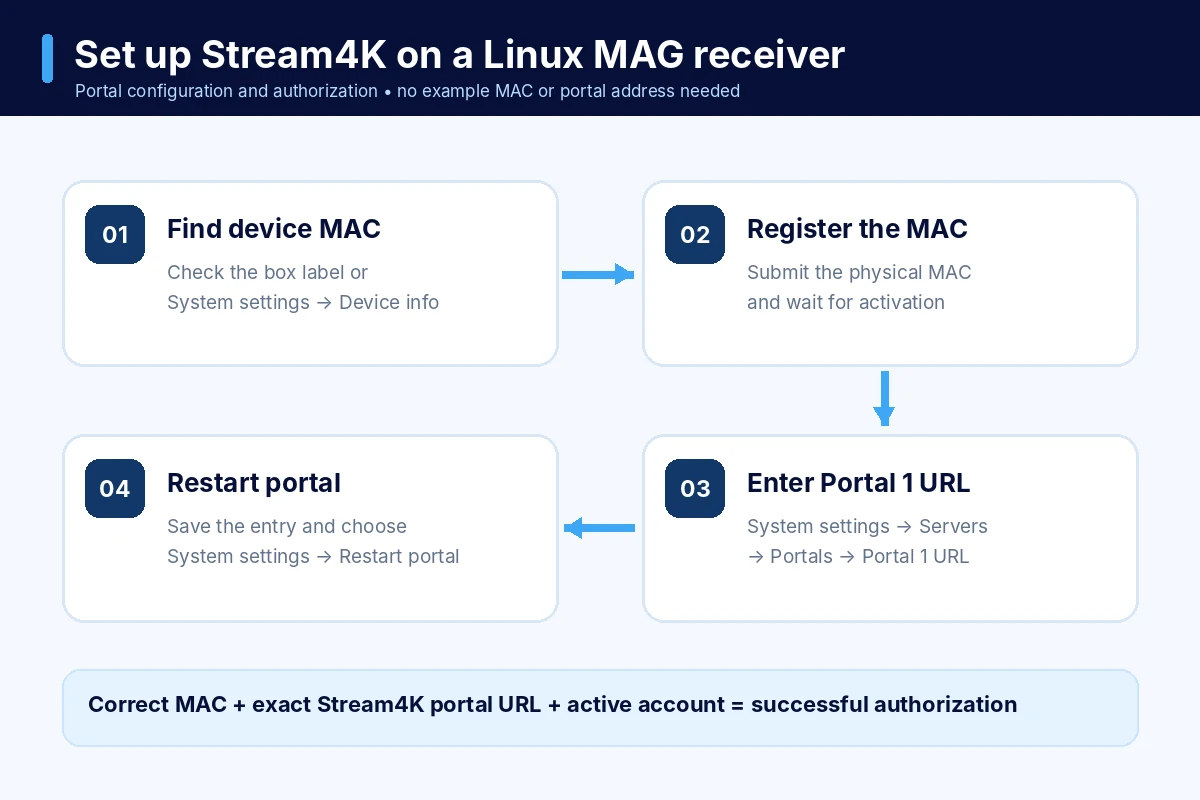
Configuration diagram based on Infomir’s documented menus—not an on-device screenshot.
Step 4: Confirm that Stream4K loads
After the restart, an approved portal should open its interface. Check that live channel categories load, that you can open a channel, and that available guide or on-demand sections respond. Some channel groups or functions vary by account and device; don’t assume every feature exists on every older MAG model.
If the portal loads but a specific channel fails, try another channel before changing device settings. Note the affected channel, the approximate time, your model and any error message. For general availability questions, you can browse the Stream4K Content Library and confirm the current selection with support.
MAG 254 and MAG 322 troubleshooting
| What you see | First check | What to do next |
|---|---|---|
| Page Loading Error or portal page unavailable | Network connection and every character of Portal 1 URL | Confirm a valid IP address, check the URL against the one supplied for your account, then restart the portal. |
| STB is blocked or device not authorized | MAC registration and subscription/trial status | Send Stream4K the displayed MAC, model and exact error. Reboot after support confirms activation. |
| Stuck at Loading portal | Network, portal URL, operator availability | Restart the box once; if it persists, report the message rather than repeatedly resetting the device. |
| Old provider’s portal still opens | Custom operator firmware or portal autostart setting | Check whether Portals is accessible and whether a different portal is selected. Contact the original provider if the menu is locked. |
| Portal loads but channels are missing | Account entitlements and channel categories | Compare with a second channel group and ask support to verify the account; don’t erase settings without direction. |
| Video buffers or freezes | Ethernet link, router, one channel versus all channels | Test a wired connection where possible and restart the receiver/router; report repeated stream-specific failures. |
| Video works but no sound | TV mute, HDMI audio output, selected audio track | Check both TV and MAG volume and try another channel; some audio formats may not be supported by older devices. |
Infomir’s MAG 322 support page distinguishes Page Loading Error (network or URL) from operator messages such as STB is blocked. A factory reset is not a routine first troubleshooting step: it may erase settings and is especially risky on a receiver previously configured with operator firmware.
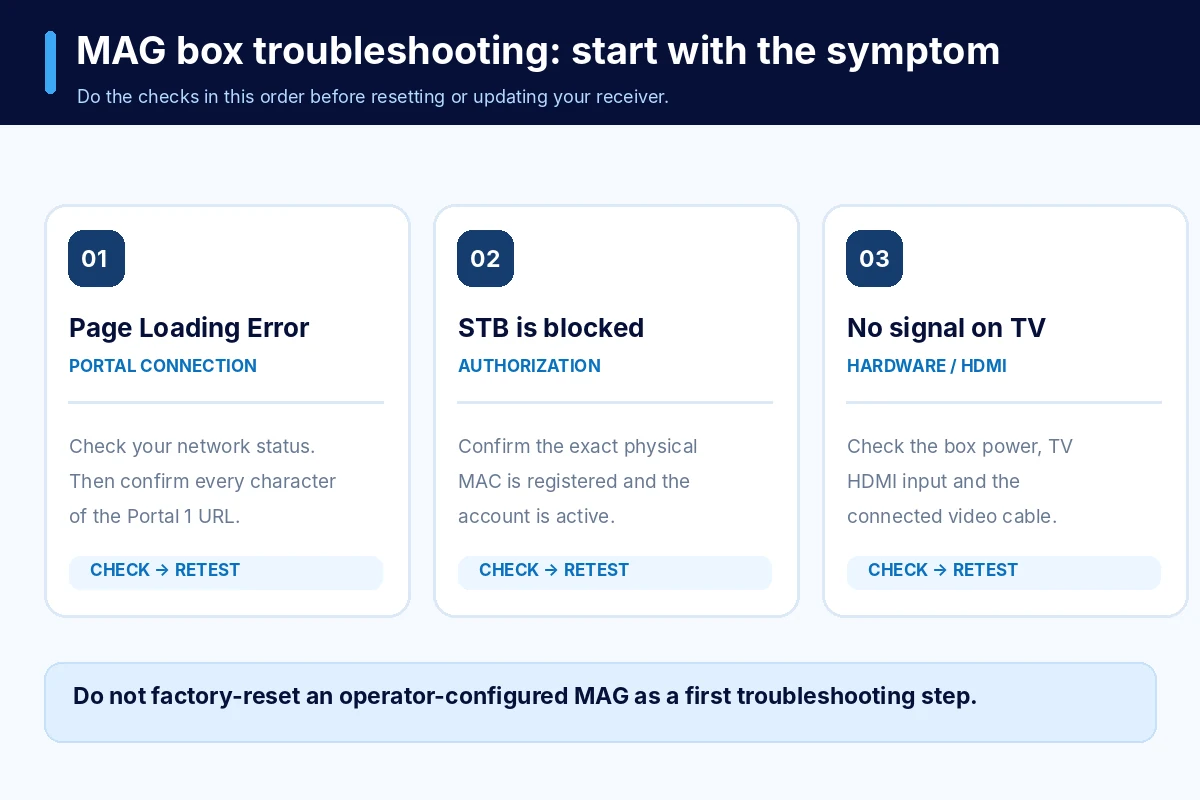
Match the error message to the first check before changing other settings.
What if the MAG box says its time is not synchronized?
Check whether the embedded portal displays a correct clock. Infomir recommends checking Settings → System settings → Servers → General and the NTP server setting when time synchronization fails. If a time error appears only after a service portal opens, report it with the device model and portal status. Infomir’s FAQ documents this distinction.
Questions about using Stream4K on MAG boxes
Can I use an M3U playlist or Xtream Codes login instead of a Stalker URL?
These are different connection methods. The Stream4K process described here uses a portal URL plus an authorized MAC. Infomir’s embedded portal also supports some playlist functions, but an M3U link is not interchangeable with the Stalker portal address. Use the method supplied for your specific account.
Can I connect two MAG boxes to one Stream4K subscription?
The standard Stream4K subscription is designed for one active device at a time. Register the MAC of the receiver you intend to use and ask support before changing devices. Do not assume two physical receivers can stream simultaneously on one connection.
Why does a MAG 322 show 1080p even with a 4K service?
The MAG 322 supports video decoding up to 1080p, according to its manufacturer specifications. 4K-labelled content cannot bypass the receiver’s hardware output limit. For actual 4K playback, choose a device and player with confirmed 4K capability, and verify that the stream is available in 4K.
Do I need a separate streaming app on a MAG 254?
No. The Linux-based MAG 254 already has Infomir’s embedded portal interface. An Android application such as STBEmu is intended for compatible Android devices, not for direct installation on a Linux MAG 254. See the Stream4K Android TV setup guide if you instead use an Android TV or Android streaming box.
Conclusion
For a MAG 254 or MAG 322, the practical route is to identify and register the receiver’s physical MAC, enter the exact Stream4K address in Portal 1 URL, and Restart portal. If the box says STB is blocked, verify registration before troubleshooting the network; if it says Page Loading Error, check connectivity and the URL first. Avoid resetting a working box or changing its firmware merely to solve an activation problem.
Start with an eligible Stream4K trial request or review the subscription plans, and supply your MAG model and MAC during activation. That gives support the device information needed to confirm whether your box can connect.